
If an app is not responsive, you can close it completely and open it again. After force quitting StrivePD on the phone and watch, please reopen StrivePD on the iPhone first, then reopen it on the Apple Watch
Force Quit App on the iPhone
The way you close an app depends on the type of device that you have.
iPhone SE, iPhone 8 and earlier, and iPod touch
- Double-click the Home button to show your most recently used apps.
- Swipe right or left to find the app that you want to close.
- Swipe up on the app's preview to close the app.
iOS 16 isn't supported on iPhone SE (1st generation), iPhone 7, iPhone 6, iPhone 6s, and iPod touch.
iPhone X and later
- From the Home Screen, swipe up from the bottom of the screen and pause in the middle of the screen.
- Swipe right or left to find the app that you want to close.
- Swipe up on the app's preview to close the app.
Force Quit App on the Apple Watch
-
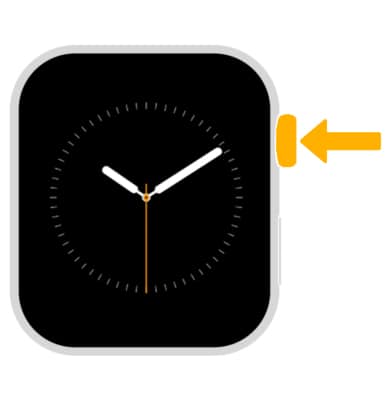
To access the Recent apps list, from the clock screen, double press the Digital Crown/Home button.
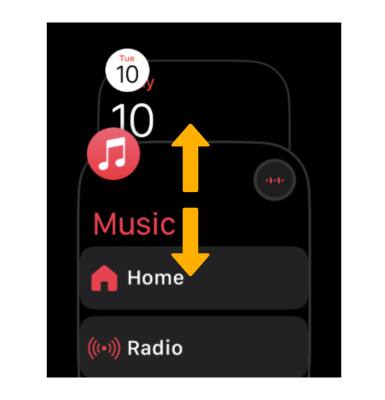
 2. Swipe up or down to the desired app. After approximately two seconds the app will open automatically.
 3. Swipe left on the desired app you wish to close, then select the X icon.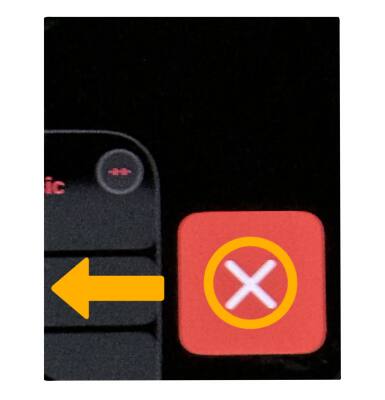
Comments
0 comments
Please sign in to leave a comment.